
Optimize FPS for Better Gaming Performance: Beginner Guide
If your favorite game feels choppy or laggy, you’re not alone. Learning how to optimize FPS for better gaming performance is one of the fastest ways to transform a stuttery experience into smooth, responsive gameplay. Frames per second, or FPS, measures how many images your PC renders every second, and higher numbers generally mean smoother motion and quicker reactions.
This guide breaks down beginner-friendly, safe optimization techniques you can use today. No risky registry hacks, no shady “FPS booster” downloads — just proven methods backed by trusted sources like Microsoft, NVIDIA, AMD, and Intel.
What Is FPS and Why Is It Important?
FPS (Frames Per Second) refers to how many individual frames your graphics card draws and displays each second. The higher the FPS, the smoother the on-screen action appears, especially during fast movement or combat.
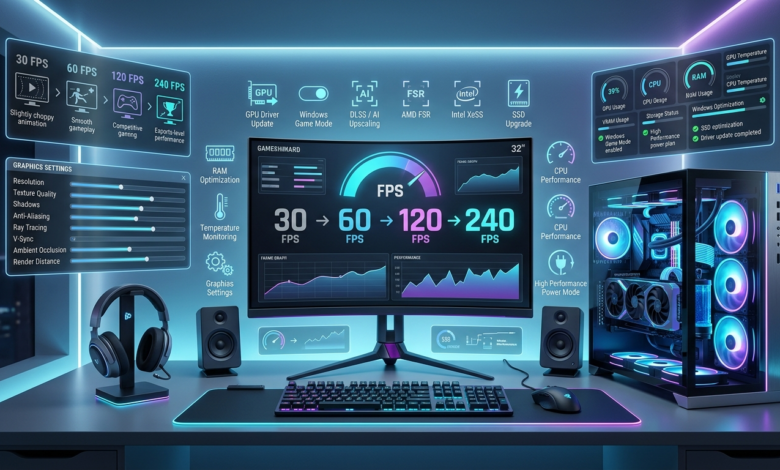
Here’s a quick breakdown of common frame rate tiers:
- 30 FPS — Playable but can feel sluggish, especially in fast-paced games
- 60 FPS — The standard for smooth, responsive gaming
- 120 FPS — Noticeably smoother, popular for competitive shooters
- 240 FPS — Ultra-smooth, mainly beneficial for esports players with high refresh rate monitors
It’s important not to confuse FPS with refresh rate. FPS is how many frames your GPU produces, while refresh rate (measured in Hz) is how many times your monitor can display those frames per second. A 144Hz monitor can only show the benefit of high FPS if your PC can actually produce that many frames.
FPS also matters differently depending on genre. Competitive shooters like Valorant or Counter-Strike benefit hugely from high, stable frame rates, while slower-paced story games can feel perfectly enjoyable at 30–60 FPS.
Check Your Current FPS
Before optimizing anything, you need a baseline. Here are the easiest tools for beginners:
- Steam FPS Counter — Go to Steam Settings > In-Game, then enable the FPS counter overlay.
- Xbox Game Bar — Press
Win + Gon Windows to open a built-in overlay with an FPS display. - NVIDIA App / GeForce Experience — NVIDIA GPU owners can enable an in-game overlay showing FPS, temperature, and usage stats.
- AMD Software: Adrenalin Edition — AMD’s official app includes a performance overlay for FPS and hardware monitoring.
- MSI Afterburner (optional) — A trusted third-party tool for more detailed performance monitoring, widely used and safe.
Tracking FPS before and after changes helps you see exactly what’s working.
Best Ways to Optimize FPS for Better Gaming Performance
These are the safest, most effective methods to optimize FPS for better gaming performance, ranked from easiest to more advanced.
1. Lower In-Game Graphics Settings
Reducing settings like shadows, texture quality, or draw distance can significantly increase FPS with minimal visual trade-off.
2. Update Your GPU Drivers
Outdated drivers are one of the most common causes of poor performance. Update through the NVIDIA App or AMD Adrenalin Software regularly.
3. Enable Game Mode in Windows
Go to Settings > Gaming > Game Mode and turn it on. This helps Windows prioritize system resources for your game.
4. Close Unnecessary Background Applications
Browsers, chat apps, and launchers running in the background consume CPU and RAM that your game could be using instead.
5. Adjust Power Settings
Set your Windows power plan to Best Performance (or High Performance on laptops) via Settings > System > Power.
6. Enable DLSS, FSR, or XeSS
If your game supports it, NVIDIA DLSS, AMD FSR, or Intel XeSS can boost FPS significantly by using AI upscaling without major quality loss.
7. Keep Windows Updated
Microsoft regularly releases performance and compatibility fixes through Windows Update.
8. Clean Up Storage
A nearly full drive can slow load times and background processes. Keep at least 15–20% free space.
9. Reduce Startup Programs
Open Task Manager > Startup Apps and disable anything you don’t need running at boot.
10. Use an SSD Instead of an HDD
If you’re still using a traditional hard drive, upgrading to an SSD dramatically improves load times and reduces stutter.
11. Monitor System Temperatures
Overheating can cause your CPU or GPU to throttle performance. Use tools like HWMonitor to keep an eye on temps.
12. Manage RAM Usage
Close memory-heavy apps and browser tabs, especially if you have 8GB of RAM or less.
Recommended Graphics Settings for Beginners
Understanding what each setting does helps you make smarter trade-offs between visuals and performance.
- Resolution — Lower resolution increases FPS but reduces sharpness
- Texture Quality — High settings look great but demand more VRAM
- Shadows — One of the most performance-heavy settings; lowering it often yields big FPS gains
- Anti-Aliasing — Smooths jagged edges but can cost several frames
- Ambient Occlusion — Adds realistic shading; can be lowered for extra performance
- Motion Blur — Purely visual; disabling it can improve perceived responsiveness
- V-Sync — Prevents screen tearing but can introduce input lag; consider G-Sync or FreeSync instead
- Ray Tracing — Beautiful lighting effects, but very demanding; only enable if your GPU supports DLSS/FSR alongside it
- Render Distance — Lowering this in open-world games can meaningfully boost FPS
Common FPS Mistakes to Avoid
- Downloading fake “FPS booster” software — These tools rarely work and can contain malware
- Overclocking without proper knowledge — Incorrect overclocking can damage hardware or cause instability
- Using outdated GPU drivers — Always update through official NVIDIA or AMD channels
- Running too many background apps — Even small apps add up and steal resources
- Ignoring system requirements — Trying to run demanding games on underpowered hardware leads to frustration
When Should You Upgrade Your Hardware?
Sometimes software tweaks aren’t enough, and it’s time to consider hardware upgrades:
- GPU Upgrade — If your graphics card struggles even at low settings, it’s likely the bottleneck
- CPU Bottlenecks — If GPU usage stays low while FPS is poor, your CPU may be holding you back
- RAM Requirements — Most modern games recommend at least 16GB for smooth performance
- SSD Upgrades — Faster storage reduces stuttering and load times
- Monitor Refresh Rate — A higher refresh rate monitor only helps if your PC can consistently hit those frame rates
If you’re shopping for a new display to match your upgraded performance, check out our guide to the Best Gaming Monitors of 2026 for options across every budget.
Conclusion
Most beginners can optimize FPS for better gaming performance without spending a single dollar. Updating drivers, adjusting in-game settings, enabling Game Mode, and closing background apps can produce noticeable improvements in minutes. Hardware upgrades become worthwhile once you’ve exhausted these free optimizations and still find your GPU, CPU, or RAM struggling to keep up with modern games.
Start with the free fixes, monitor your FPS before and after each change, and only consider upgrading hardware when software optimization hits its limit. For more ways to get the most out of your setup, browse our latest Gaming Tech News for hardware releases and performance tips.
Frequently Asked Questions
1. What is a good FPS for gaming? For most games, 60 FPS is considered smooth and comfortable. Competitive players often aim for 120 FPS or higher for a responsive edge.
2. Does lowering resolution really increase FPS? Yes. Lower resolutions require your GPU to render fewer pixels, which typically results in a noticeable FPS increase.
3. Is overclocking safe for beginners? Overclocking can improve performance but carries risks if done incorrectly. Beginners should stick to safe, built-in performance modes instead of manual overclocking.
4. Can I increase FPS on a gaming laptop the same way as a PC? Yes, most tips apply to both, though laptops benefit extra from setting the power plan to Best Performance and keeping them on a cooling pad to avoid thermal throttling.
5. Do free FPS booster apps actually work? Most third-party “FPS booster” apps offer little real benefit and can pose security risks. Stick to official tools like the NVIDIA App, AMD Adrenalin Software, or built-in Windows settings.
If you’re also looking for something new to play while your system runs smoother than ever, check out our roundup of the Best Upcoming PS5 Games Releasing in 2026.